Everything about one product, on two tabs: Details is what it is, and Variants is what you actually sell and what it cost you. The heading counts the variants so you can see at a glance whether it's sellable at all.
Listing
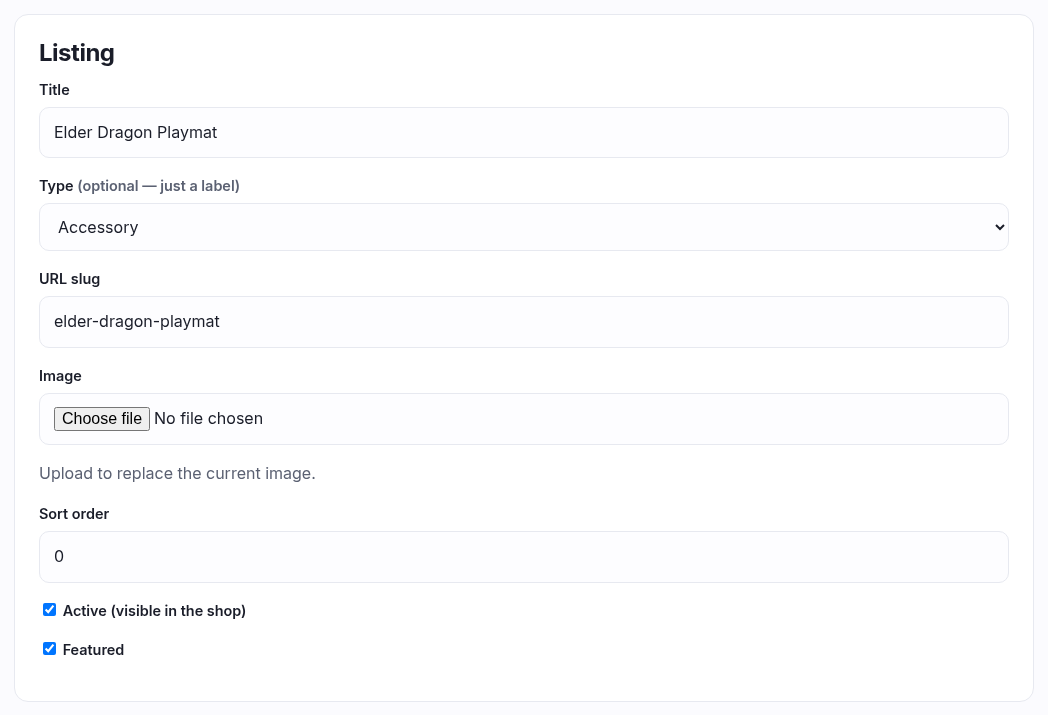
What the product is. The fields differ depending on where the product came from, and that difference is the important thing on this page:
| Field | Your own product | A catalogue listing |
|---|---|---|
| Title | Required — it's yours. | Title override, optional. Leave it blank and the catalogue name is used, so a card renamed at source stays correct on your shop. |
| Type, URL slug, Image | Yours to set. | Not shown. The catalogue supplies them, and letting a shop re-type them is how a card ends up filed under the wrong set. |
| Sort order, Active, Featured | Both. Untick Active to pull it off the storefront while keeping it and its stock. | |
Categories & filters
Which of your categories and filter options this product is tagged with — what shoppers use to narrow a grid, and what a discount can be scoped to. Build the options themselves under Filters.
Description
Your own copy about this product, in HTML. If your plan includes multiple languages you get a box per language; leave one blank to show nothing in that language rather than falling back.
Inventory protection
Only if your plan includes it, and only worth using on something that will be fought over:
- Release batch — expose only this many units at a time, holding the rest back. Blank releases everything at once.
- Cooldown — how long to wait before releasing the next batch once one sells out. Blank means 24 hours.
- Max per customer — the most one account may ever buy online. Lifetime, not per order.
Pre-order
A future release date turns the product into a pre-order, with the badge and date shown to shoppers, an optional cancellation fee, and a collection-only option.
Save, and delete
Save product commits the Details tab. Deleting is at the bottom, asks first, and takes the variants and their stock with it — if you only want it off the shop, untick Active instead.