
The menu shoppers browse by. It's a three-level tree you build here and save in one go — nothing reaches the storefront until you press Save.
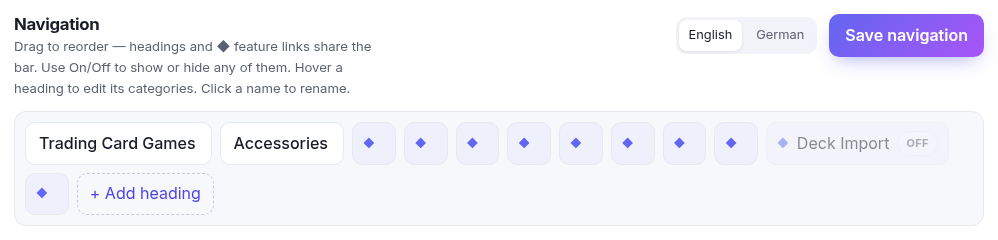
The three levels
| Level | What it is |
|---|---|
| Heading | A top-level entry in the menu bar — "Trading Card Games", "Accessories". Shoppers don't buy from a heading; they open it. |
| Category | What sits under a heading and what customers actually click — a game, a product line. |
| Sub-category | One level deeper, under a category. "Singles", "Sealed". |
Hover a heading to open it
Point at a heading and its categories appear below — you don't click it, because clicking a name starts renaming it. That's the single thing worth knowing before you start: hover to open, click to rename.
Renaming, adding, deleting
- Click any name to edit it in place. Press Enter to finish.
- + Add heading, + Add category and + sub-category add an empty row, ready to be named.
- ✕ removes one. Deleting a heading takes everything under it, and it says so before it does.
Nothing is live until you save
The whole tree is posted in one go by Save navigation. Until then the button marks itself with Unsaved changes, and leaving the page warns you.
If two of you edit the menu at once, the second save is refused with "someone else changed the menu while you were editing" rather than quietly overwriting their work. Reload, look at what they did, and redo your bit.