Each category row carries everything you can do to it.
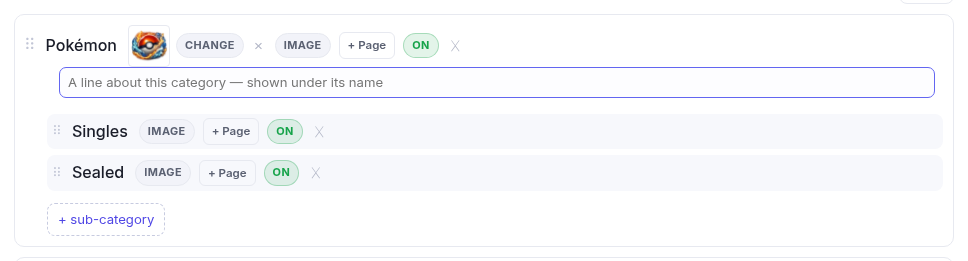
| Control | What it does |
|---|---|
| ⠿ (the grip) | Drag to reorder within the heading. |
| The name | Click to rename in place. |
| Image | A picture for the category, shown wherever your theme displays them — category cards on the home page, the mega menu. Optional, and removable afterwards. |
| + Page | Gives this category a designed landing page. See below. |
| On / Off | Keeps the category in your tree but out of the live menu — for building something before you reveal it. |
| ✕ | Removes it. |
| + sub-category | Adds a level beneath — "Singles", "Sealed". |
Landing pages, and what they replace
Normally a category goes straight to its product grid. + Page puts a designed page in front of it instead — a hero, some text, featured products — and the grid moves one click deeper. Build the page itself in Pages; the button becomes Edit this category's landing page once it exists.
A brand-new category can't have one yet. The button is greyed and reads "Save the menu first" — the page has to attach to a category that actually exists. Save, then add the page.
Advanced mega

Turns this category's drop-down into a mega menu: instead of a plain list, it opens into columns pinned to your filter groups, so a shopper can jump straight to a facet rather than landing on the grid and narrowing it themselves.
Tick it and pick which filter groups become columns. Only worth it on a category with a lot beneath it — a mega menu over three sub-categories is just a bigger box of the same three links.
If you have no filter groups yet it says so; build them in Filters and they appear here with no other change.