
The right-hand end of the header is the part that decides what customers see.

The status, in three states
| It says | Meaning |
|---|---|
| Live is up to date | Draft and live match. Nothing to publish. |
| Draft is ahead of live | You have unpublished changes. Customers are still seeing the old version. |
| Never published | This page has never been live. Customers can't reach it at all yet. |
Your typing saves as you go — Saving… then Saved — but saved is not published. That's the distinction the whole screen turns on.
Publish
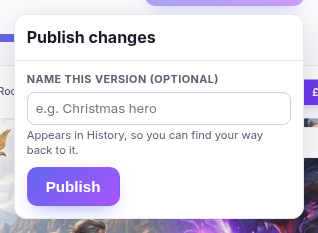
Makes the draft live. You can name the version first — optional, and worth it: the name is what you'll see in History when you're trying to find your way back. "Before the summer sale" beats a timestamp.
History, and getting back
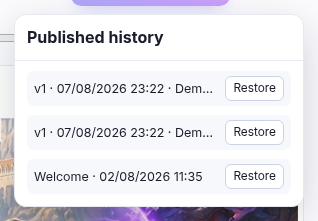
History lists every published version, newest first, with its name and when it went out — which is where naming one earns its keep, because "Welcome" tells you something a timestamp doesn't. Restore brings a version back as your draft; it doesn't go live on its own, so you can look at it, change your mind, and publish only if you want it.
That's the undo for "that redesign was worse", and the reason to publish in deliberate steps rather than one enormous change.
View live
Opens the published page in a new tab, exactly as a customer sees it. Different from the preview, which shows your draft — if you want to know what's out there right now, this is the honest answer.
A sensible way to work
- Build in the draft, checking Phone width as you go.
- Publish with a name that means something.
- View live to confirm.